
Understanding User Roles (Before You Invite)
Swipey gives you control over what each team member can access and do. Before inviting someone, it helps to understand the roles you can assign and what each role can access. This ensures your team can spend what they need without giving up control. 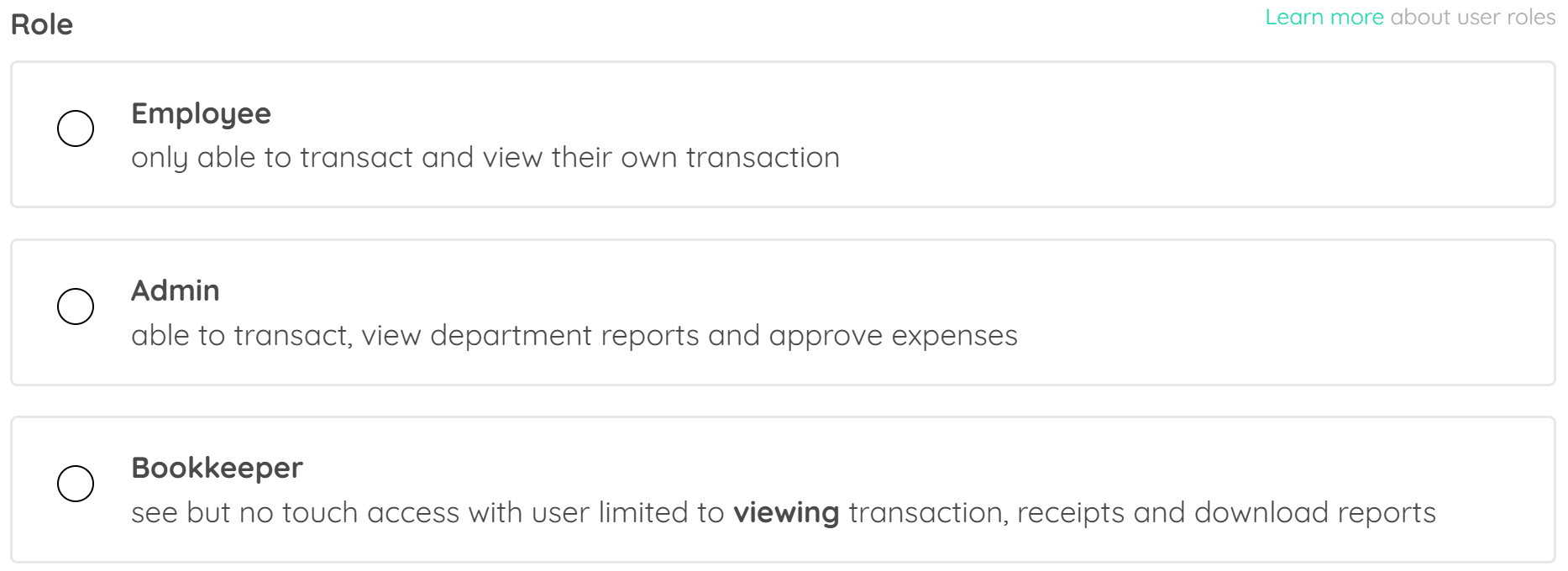
👉 Learn more about user roles here
(Detailed breakdown of Admin, Employee, and permissions)
Invite an Employee in 3 Simple Steps
Let's get started! You can invite your first employee in under a minute. Watch the short video below or follow the steps.
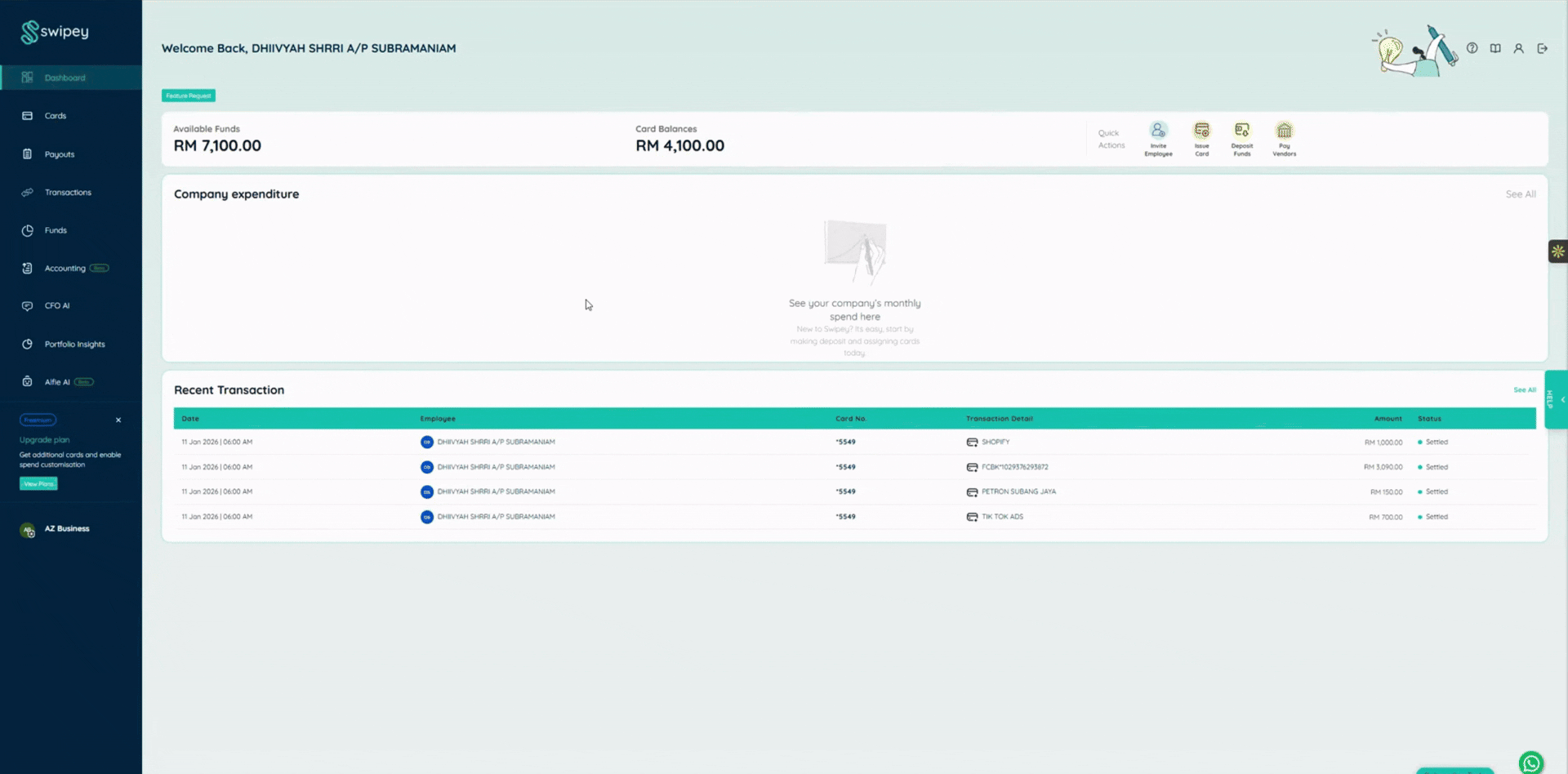
Step 1: Login to Swipey
👉 Log in to your admin dashboard
Having trouble logging in? Click here to reset your password.
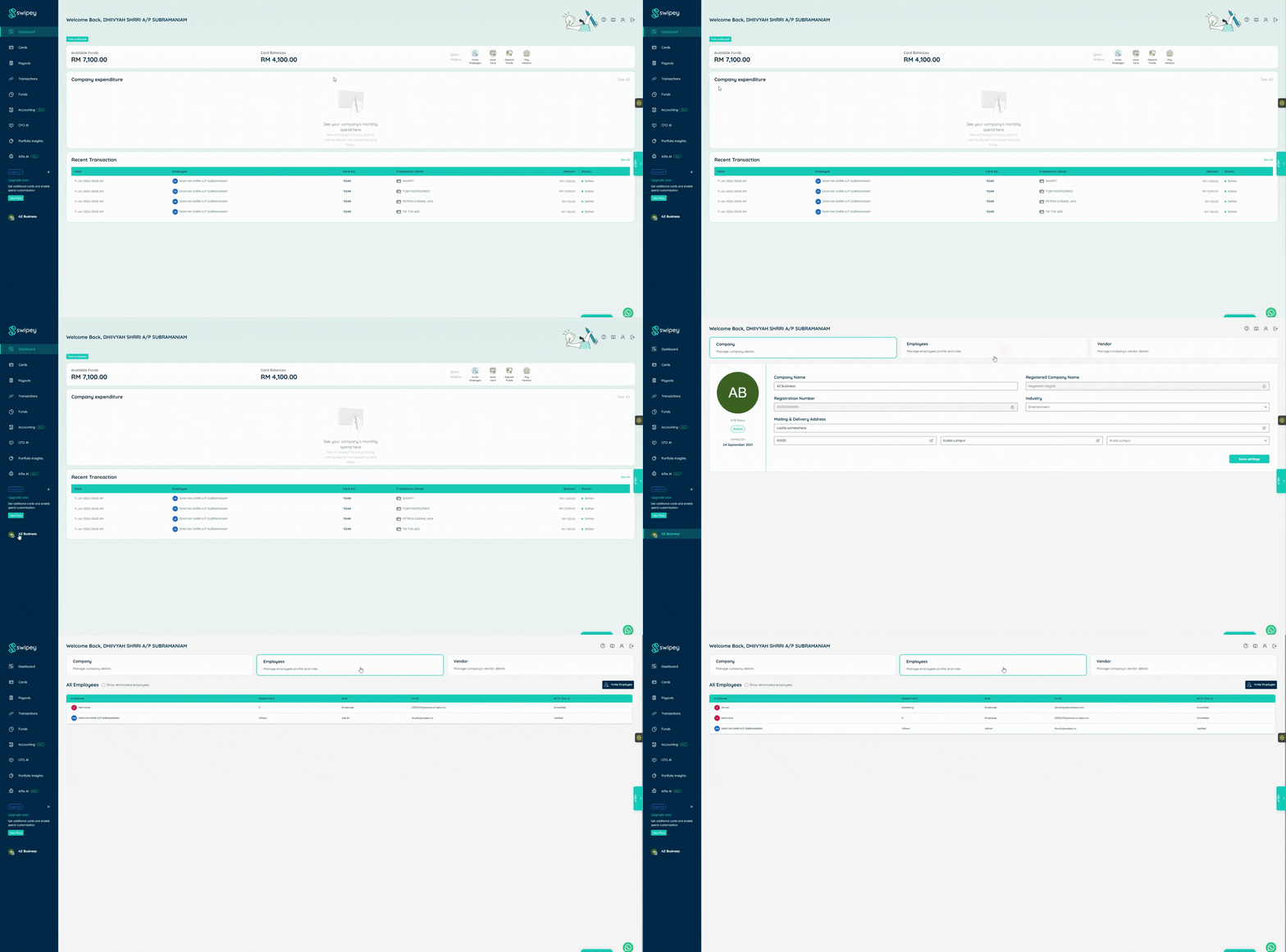
Step 2: Navigate to Employee Settings
Click on your Swipey account profile (bottom left corner). This opens your account details and settings. Under the Employees tab, click Invite Employee to enter the employee’s details.
Tip: Each employee must use a unique email and phone number that hasn’t been used on Swipey before.
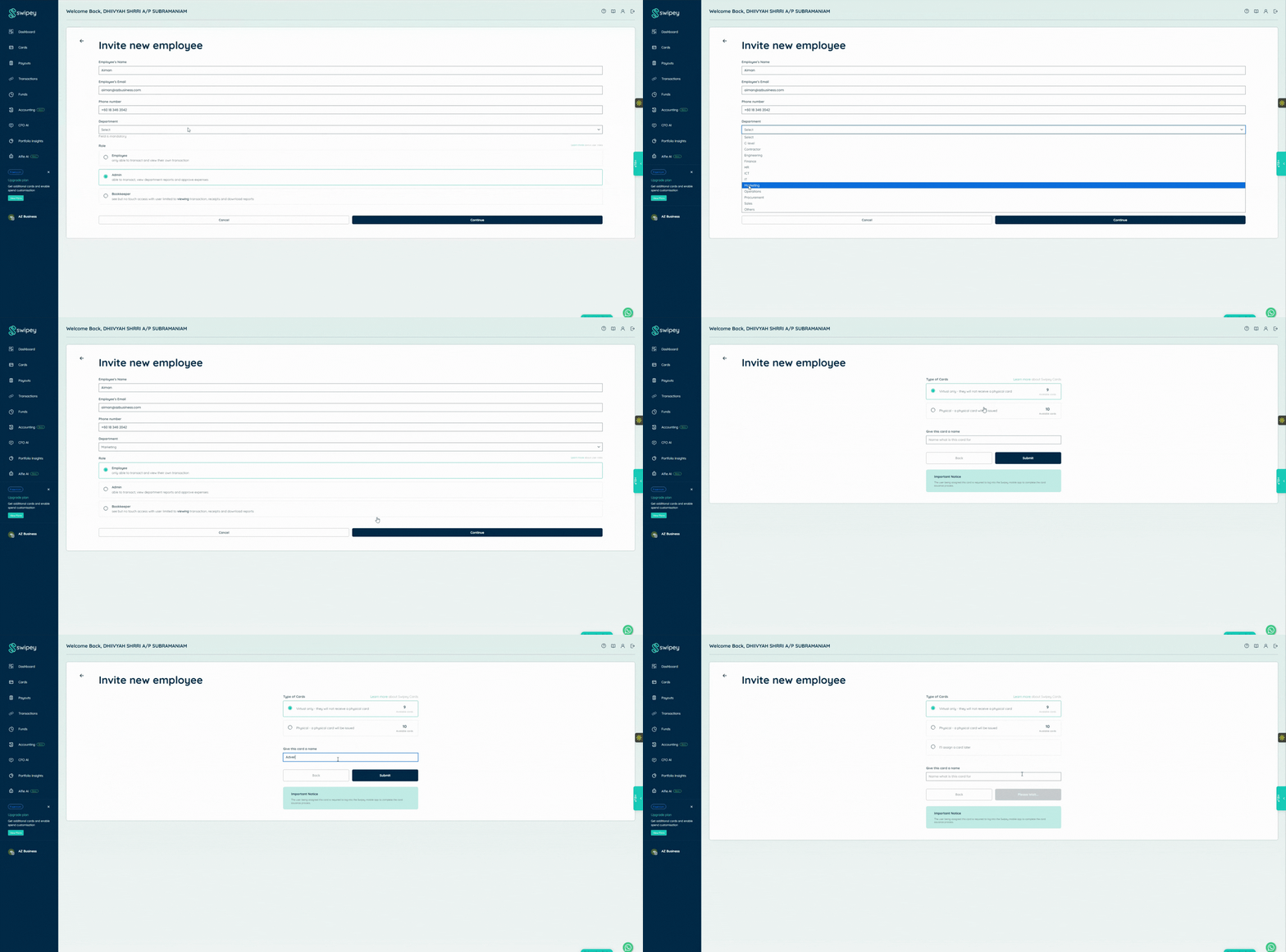
Step 3: Fill in Employee Details
You'll see a simple invitation form. Choose the role you want to assign. This determines what the employee can access. You may also choose to assign a card at this stage — this is optional and can be done later. When you’re ready, click Submit.
Your employee will receive an email invitation to join your company on Swipey. They’ll complete their setup using the Swipey mobile app. Here is a guide for your employees to setup their account.
Once completed, all added employees will appear in your employee settings to help you manage these users efficiently.
What’s Next?
The invited employee receives an email invitation from Swipey with instructions to set up their account. They will have to complete setup via mobile app.
Your employee will need to:
- Download the Swipey mobile app (iOS or Android)
- Complete KYC verification (photo ID + selfie)
- Set up their login
👉 Share this setup guide with your employee
Once your team is added, you can continue setting up your account: 👉 Assign a card
Need Help Inviting Your First Employee?
If you’re unsure or want someone to guide you through it, we’re here.
💬 Chat with us on WhatsApp
📞 Book a 30 min session and we’ll guide you through using Swipey
Common Questions
What can my employee access?
Only what you allow.
If you assign the Employee role:
- They can only use cards assigned to them
- They can only see their own transactions
- They cannot view company wallet balance
- They cannot see other employees’ spending
- They cannot create cards without approval
Can I change their role later?
Yes. Go to Employee Settings → Select employee → Edit details and change their role.
Changes apply immediately.
What if they overspend?
They can’t. You set spending limits on each card. Once the limit is reached, transactions are automatically declined. You can even clawback the money to your master account if needed.
Do employees need their own email address?
Yes. Each employee must have a unique email to receive their invitation and create a login.
Can I remove an employee later?
Yes. Go to Employee settings → Select employee → Switch to inactive.
This immediately revokes all access.