
Swipey cards are prepaid VISA cards — you can spend what's loaded on your card, nothing more. Here's how to use each card type.
Using Your Virtual Card
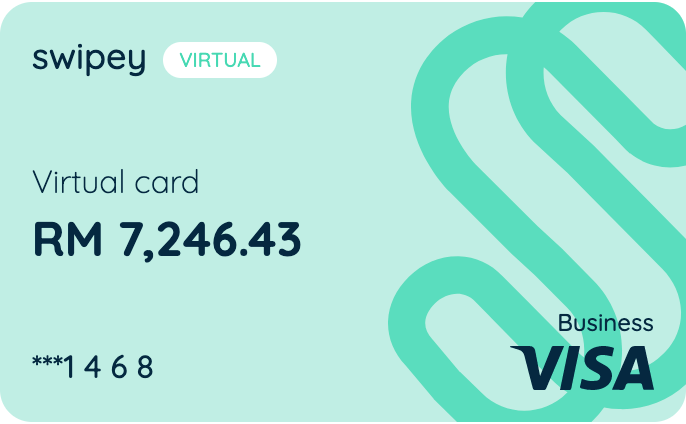
Virtual cards are for online payments only. Use them anywhere that accepts VISA online — subscriptions, SaaS tools, e-commerce, digital advertising, and more.
Open the Swipey mobile app and tap the Cards tab at the bottom. Tap Show Card Details and your 16-digit card number, expiry date and CVV will appear. Enter these details at any online checkout as you would a normal debit or credit card
Keep your details safe. Never share your CVV with anyone. Hide your card details when you're done.
Using Your Physical Card
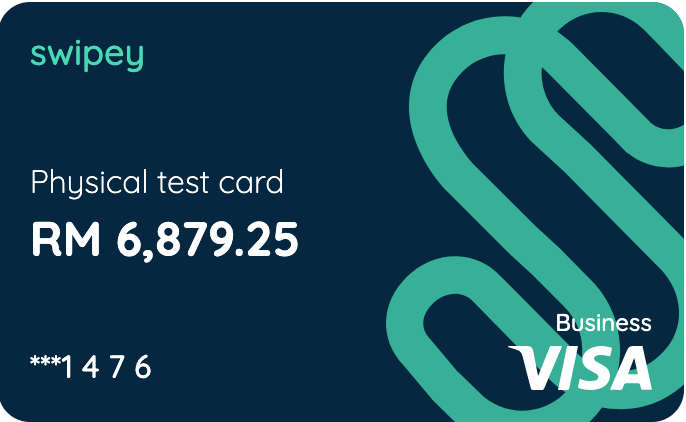
Physical cards work both online and in-store at any VISA-accepted merchant.
In-store (Chip and PIN): Insert your card into the payment terminal and enter your 6-digit PIN when prompted.
In-store (PayWave - contactless): Tap your card on the payment terminal. No PIN needed for transactions below the contactless limit.
First time using your physical card? You must complete a Chip and PIN transaction first before PayWave is activated. Tapping alone will not work until this is done.
Online: Use your physical card details the same way as a virtual card (card number, expiry date and CVV). Find your card details in the Swipey mobile app under the Cards tab.
Paying via QR Code
You can also make payments at merchants that accept QR payments directly from the Swipey mobile app.
Open the Swipey mobile app. Tap QR pay on the home screen. Scan the merchant's QR code. Enter the amount and confirm payment
Need Help?
If you’re unsure on how to make transactions through Swipey:
💬 Chat with us on WhatsApp
📞 Book a 30 min session and we’ll guide you through it
Common Questions
My PayWave isn't working — what do I do?
You need to complete a Chip and PIN transaction first to activate PayWave. If you've already done this and it still isn't working, contact us on WhatsApp.
What is the PIN for my physical card?
You set your own PIN. If you haven't set it yet or need to reset it, learn how to reset your card PIN →
My transaction was declined — what happened?
Common reasons are insufficient card balance, a restricted spend category, or the merchant not accepting prepaid cards.
Can I use my Swipey card with Apple Pay or Google Pay?
Not currently. Swipey cards do not support Apple Pay or Samsung Pay at this time.
Is there a limit on how much I can spend?
Your spending is limited to the balance loaded on your card. Your Admin may also have set a spending limit or category restrictions on your card.