
Every Swipey cardholder verifies their identity once, through eKYC in the mobile app. It takes about 2 minutes. When it’s done, you can start using your cards.
✅ What you’ll need
- Your MyKad or passport
- Your phone, to take a selfie in the app
- Somewhere with good lighting
Step 1: Download the Swipey app
Get the Swipey app from the App Store or Google Play.
Download the Swipey mobile app here:


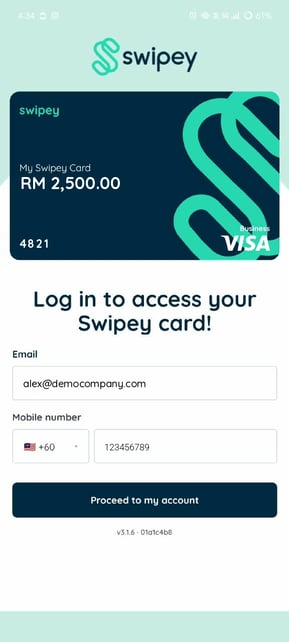
Step 2: Log in with your email and mobile number
Enter the email address and mobile number your company admin used to invite you, then log in.
Step 3: Start verification
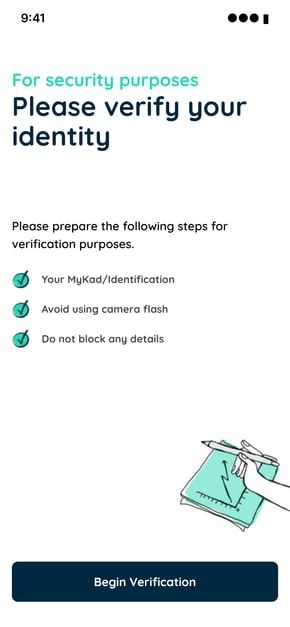
The app shows a Please verify your identity screen. Before you start, check that:
- your MyKad or ID is ready
- your camera flash is off
- nothing covers any of the details on your ID
Tap Begin Verification.
Step 4: Capture your MyKad or passport
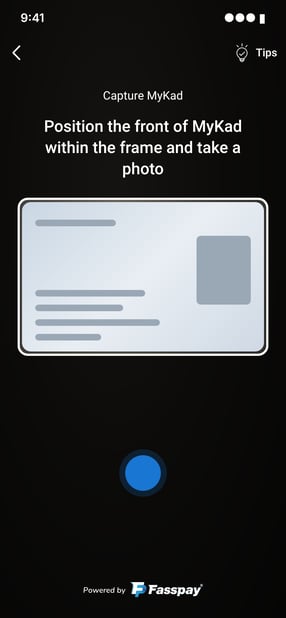
Line up the profile page of your MyKad or passport inside the frame and take the photo.
⚠️ Your ID must be in good condition. If your MyKad or passport is cracked, scratched or faded so that your photo or any detail can’t be read clearly, it won’t be accepted and your verification will fail. Get your ID replaced before you start eKYC.
Step 5: Take a selfie
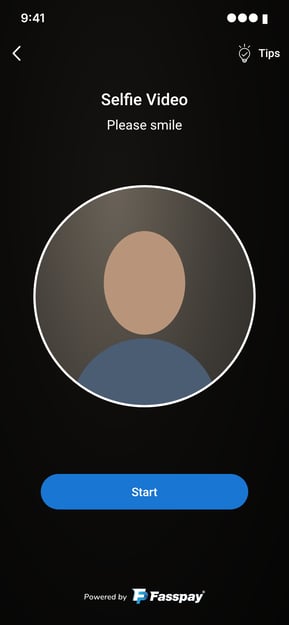
Look straight into the frame and take your selfie. Take off glasses, hats and other accessories so the app can match your face to your ID.
📌 Important: The name on your account must match your MyKad or passport exactly, including spelling and spacing. If it doesn’t match, verification will fail.
🎉 Done. Once your eKYC is approved, you can start using your Virtual Card - QR Enabled. If your company has given you a Travel Card, it’s sent for printing once you’ve logged in to the app.
❓ Frequently asked questions
Why do I need to do eKYC?
We use it to verify every cardholder, which helps keep your company’s funds safe. You only need to do it once.
My verification failed. What now?
Can I use a driving licence?
No. Only a MyKad or passport works.
My company admin hasn’t invited me. Can I sign up myself?
No. Ask your company admin to add you as a user first, then log in with the email and mobile number they used.