
After connecting Bukku, Alfie will walk you through a 2-step process to link your Swipey accounts. This tells Bukku exactly what Swipey is — so every transaction has a proper home in your books.
This setup screen appears automatically after you connect Bukku. If you're not there yet, go back to Step 1 →
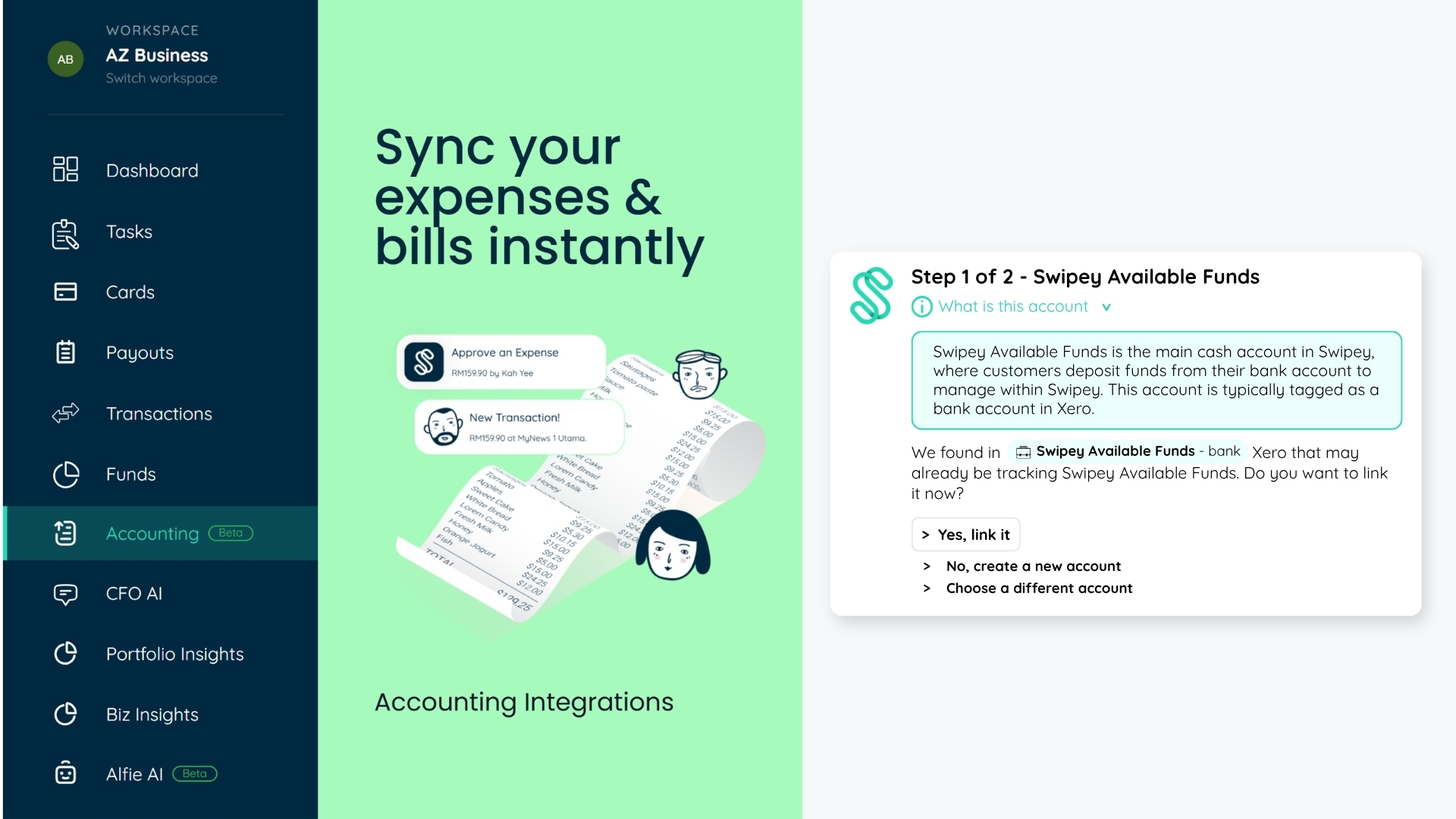
Alfie will guide you through linking two accounts in sequence — first your Swipey Available Funds account, then your Swipey Cash Balance account. Here's what each one represents:
Alfie scans your Bukku Chart of Accounts and shows you what it found. You'll see one of these three options:
Alfie found an existing account in your Bukku that looks like it's already tracking Swipey Available Funds — for example, an account named "Swipey Available Funds" or "Swipey MYR Virtual Account". Click Yes, link it to use that account.
You haven't been tracking Swipey in Bukku before, or the account Alfie found isn't right. Click this and Alfie will create a brand new Swipey Available Funds account in your Bukku Chart of Accounts automatically — no need to go to Bukku yourself.
Alfie's suggestion isn't quite right, but you know which account in Bukku should be used. Click this to open a dropdown of your entire Chart of Accounts and pick the correct one manually.
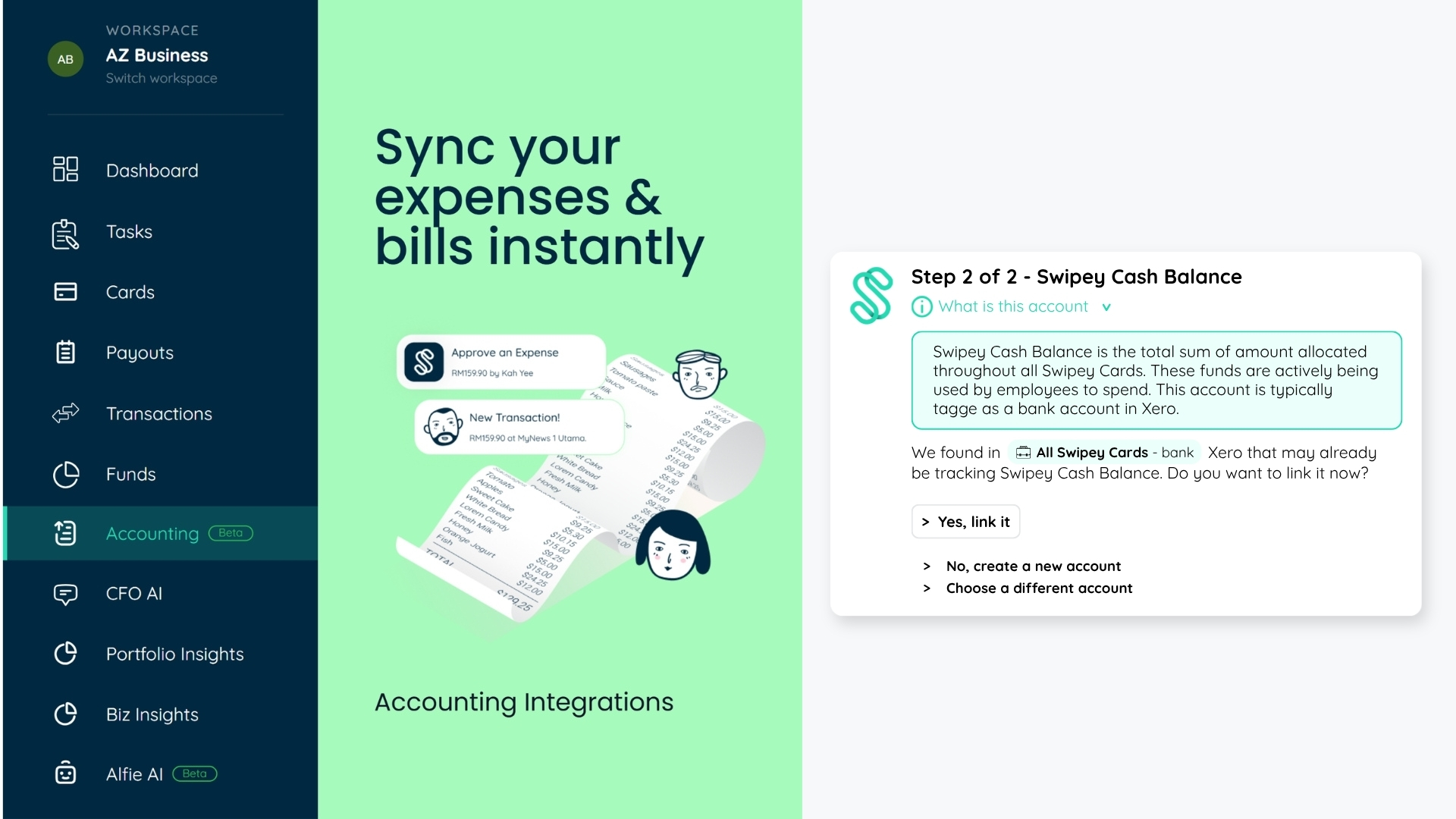
Once Step 1 is confirmed, Alfie immediately moves to Step 2 — linking your Swipey Cash Balance account. The same three options apply:
Alfie found an account that looks like it's tracking your card funds — e.g. "All Swipey Cards" or "Swipey Visa Cards". Click to confirm.
Alfie creates a Swipey Cash Balance account in your Bukku Chart of Accounts automatically.
Pick a different account from your Chart of Accounts manually from the dropdown.
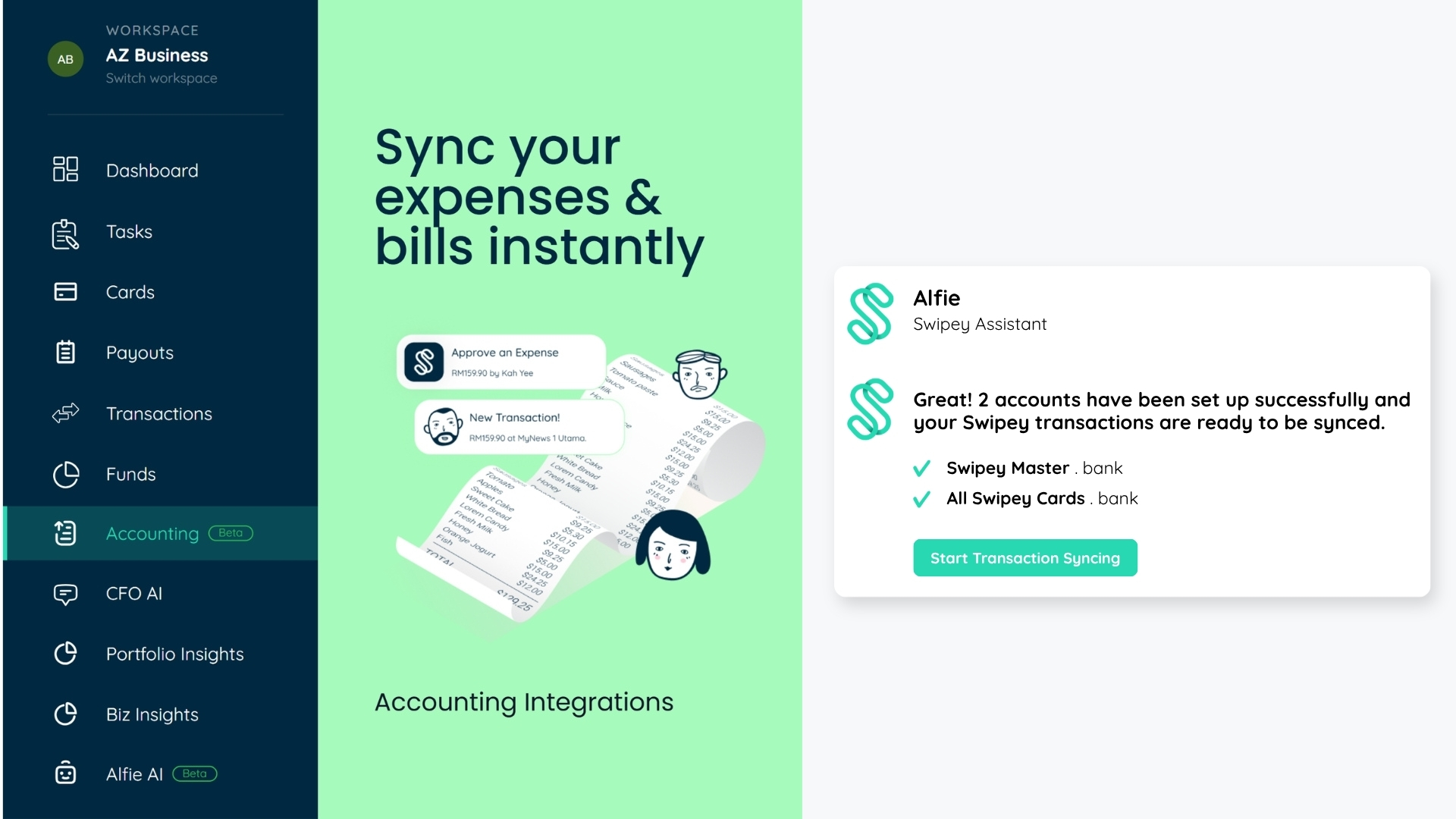
Once both steps are confirmed, you'll see a green "Linked" label next to both accounts on the Accounting page. That's it — setup is done and you're ready to start syncing transactions.
Once connected, avoid disconnecting your Bukku account. Disconnecting may cause your sync settings to be lost. If you run into issues, contact the Swipey support team first.