How to Connect Bukku to Swipey (Beta)

Built for Malaysian businesses

Connect your Bukku account to Swipey and every transaction syncs automatically — no manual entry, no spreadsheet exports, no chasing receipts. Set it up once and your books run themselves.

1
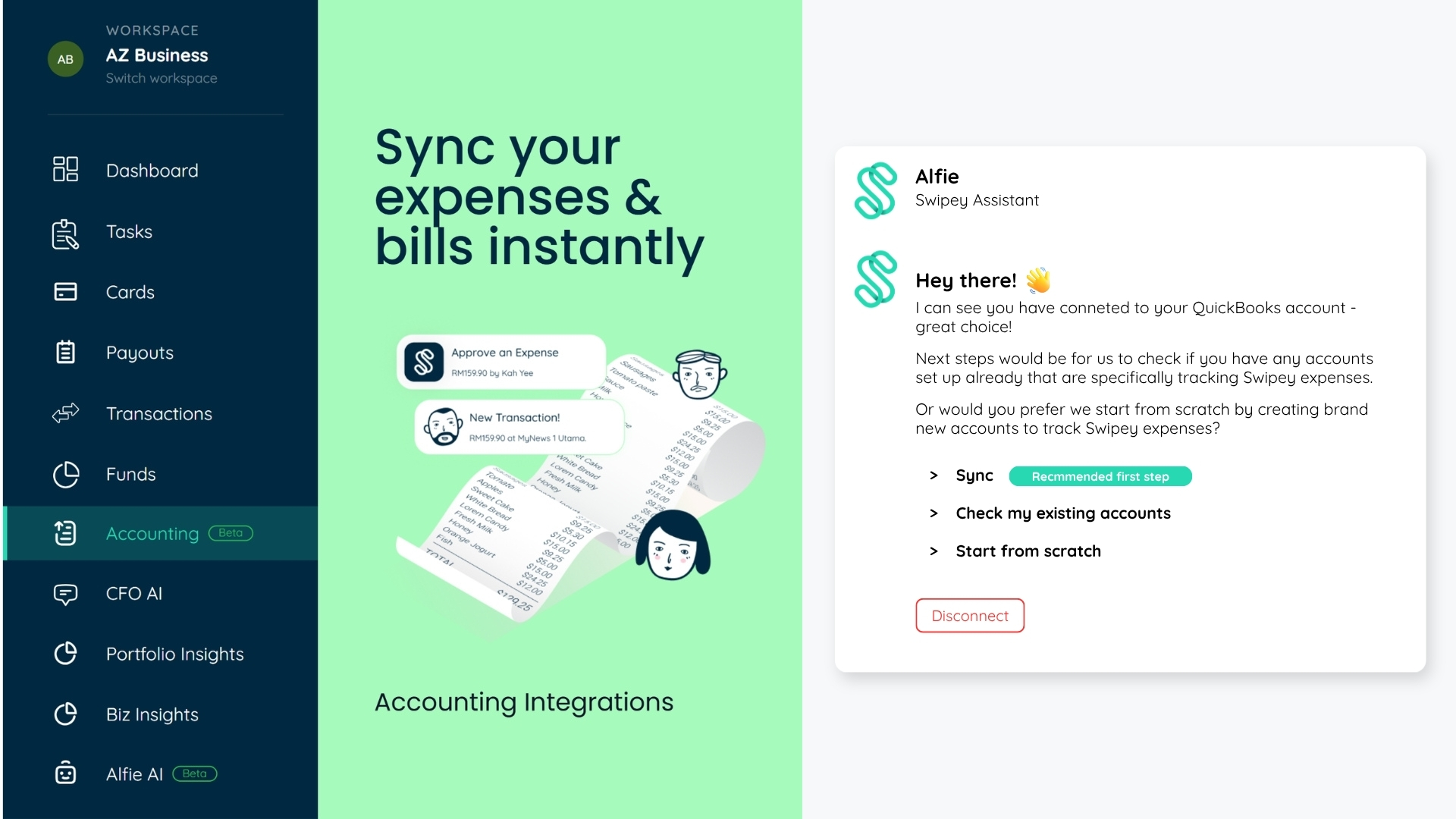
Go to Accounting in your Swipey dashboard

Log in to Swipey and click Accounting in the left navigation bar.

2
Click Connect to Bukku

Select Bukku from the available integrations and click Connect. You'll be redirected to your Bukku account to authorise the connection.

3
In Bukku, create your Swipey cash accounts

In your Bukku account, go to Chart of Accounts and create two new accounts:

  • Swipey Master Account — where your available funds are recorded
  • Swipey Cards Account — where card transactions are recorded
💡 Note the exact account names — you'll need to select them in the next step.
4
Back in Swipey, map your accounts

Use the dropdown menus to link your Swipey accounts to the ones you just created in Bukku:

Swipey Master Account
→ Bukku master cash account
Deposits & fund movements
Swipey Cards Account
→ Bukku cards cash account
Card transactions & expenses
⚠️ Map these correctly. Transactions will sync to whichever account you select here.
5
Confirm — you're connected

Click Confirm. You'll see a green Linked label next to each account when the connection is successful.

✅ You're all set. Here's what happens now

  • Every Swipey card transaction syncs to Bukku automatically in real time
  • Receipts attached in the Swipey app flow through alongside each transaction
  • Month-end closing takes minutes, not days — your books are always current

This feature is currently in early access. Join the waitlist or register on Swipey if you're new.

Need help getting set up? Reach out to us on WhatsApp.
Chat on WhatsApp
Was this article helpful?