
Keeping receipts tied to transactions makes your expense tracking clean, audit-ready, and saves your team hours at month end. There are four ways to do this:
🖥️ Admin Dashboard Upload receipts from your browser. 📱 Swipey Mobile App Snap and attach on the go. ✨ Alfie AI (Auto-Match) Let Alfie match receipts for you.📧 Forward by Email Bulk-send receipts from your inbox.
Pick whichever works best for you.
Attach receipts through Admin Dashboard
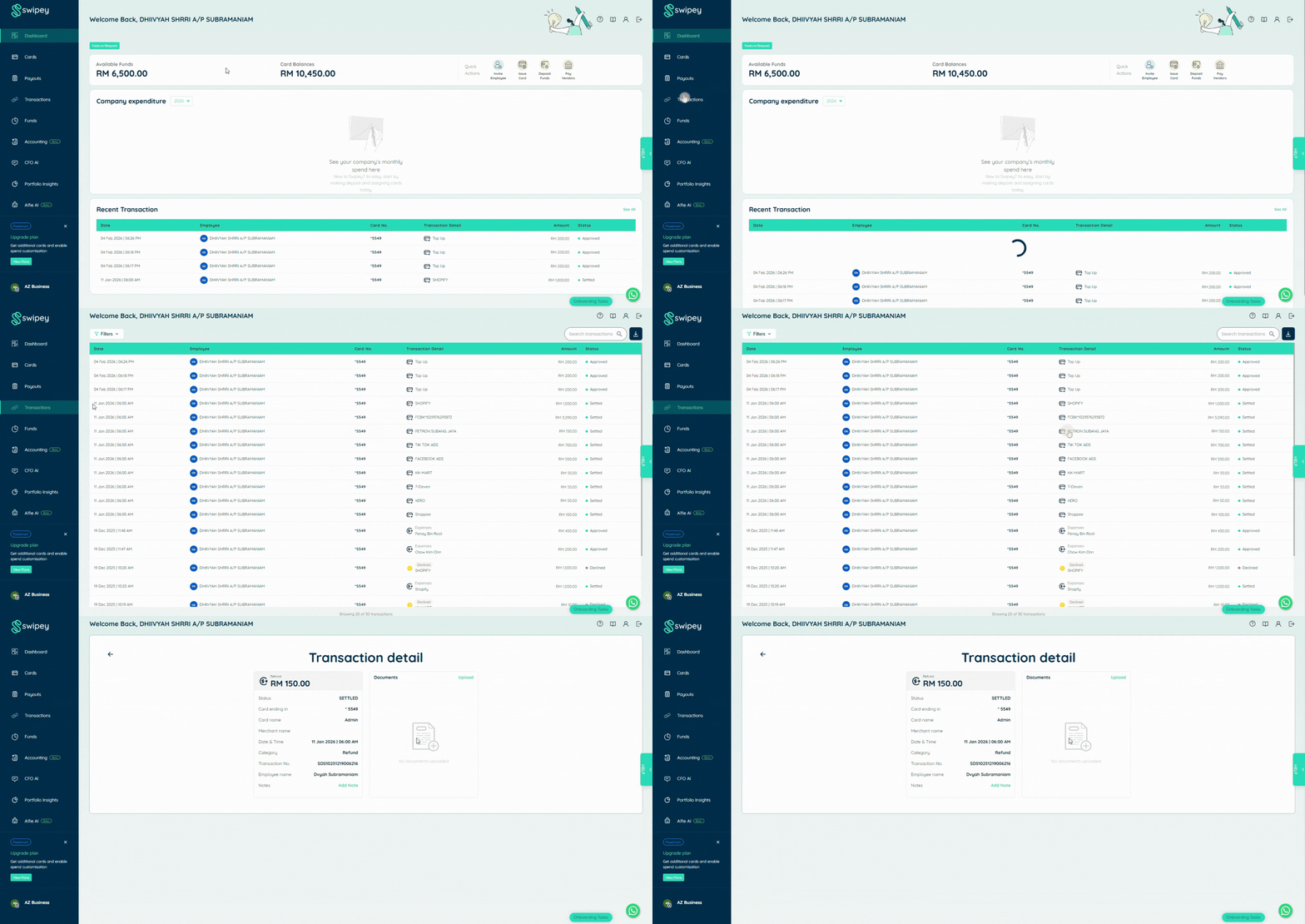
Step 1: Go to Transactions
Log in to your Swipey Dashboard and click Transactions in the left sidebar. Click on the transaction you want to attach a receipt to.
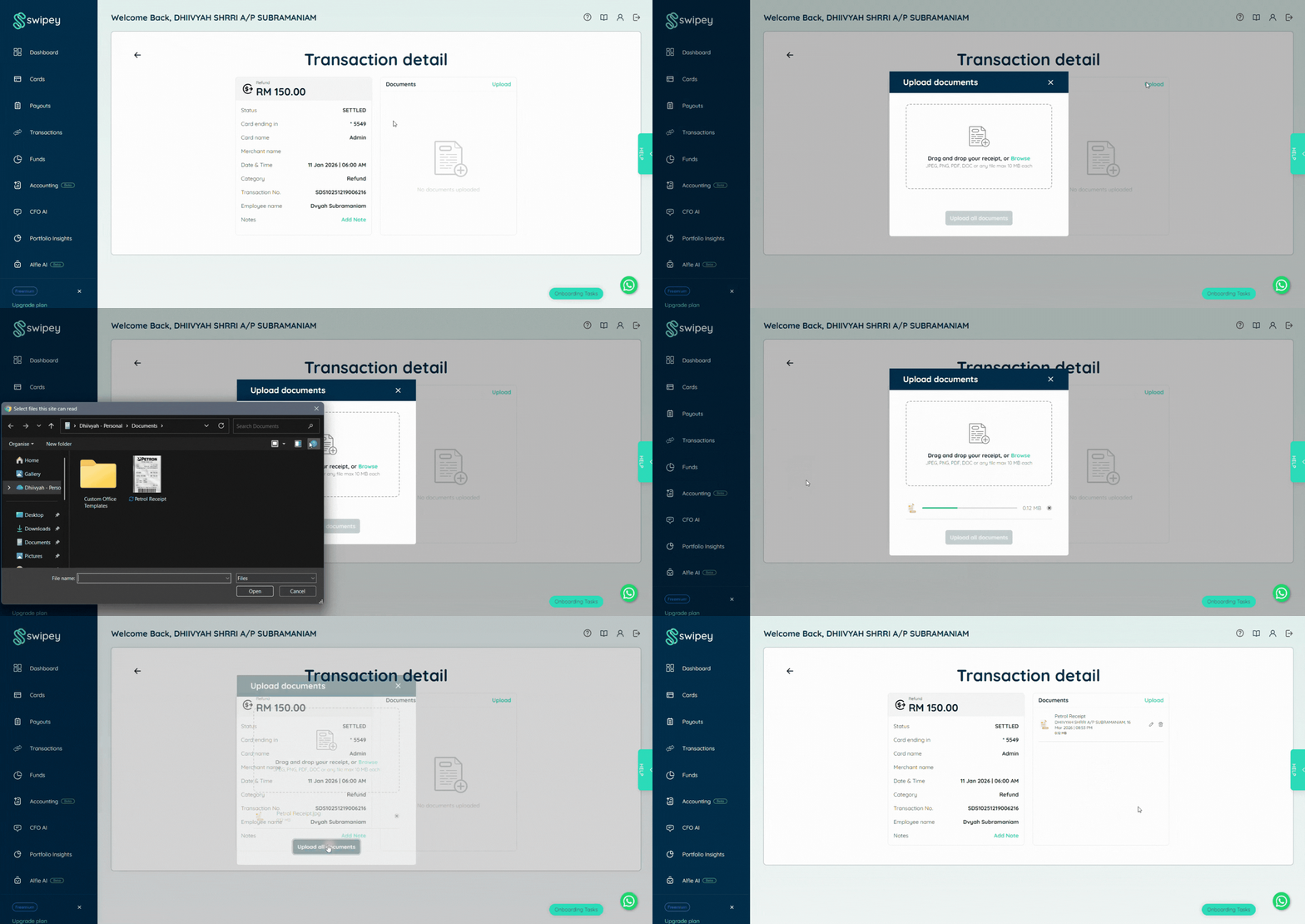
Step 2: Upload your receipt
In the transaction detail panel on the right, click Upload Receipt. Select your file and upload.
Step 3: Add a note (optional)
From the same screen, tap Add Note beside Additional Notes. Type your note and hit Save. Useful for adding context like a client name, project code, or purpose of the spend.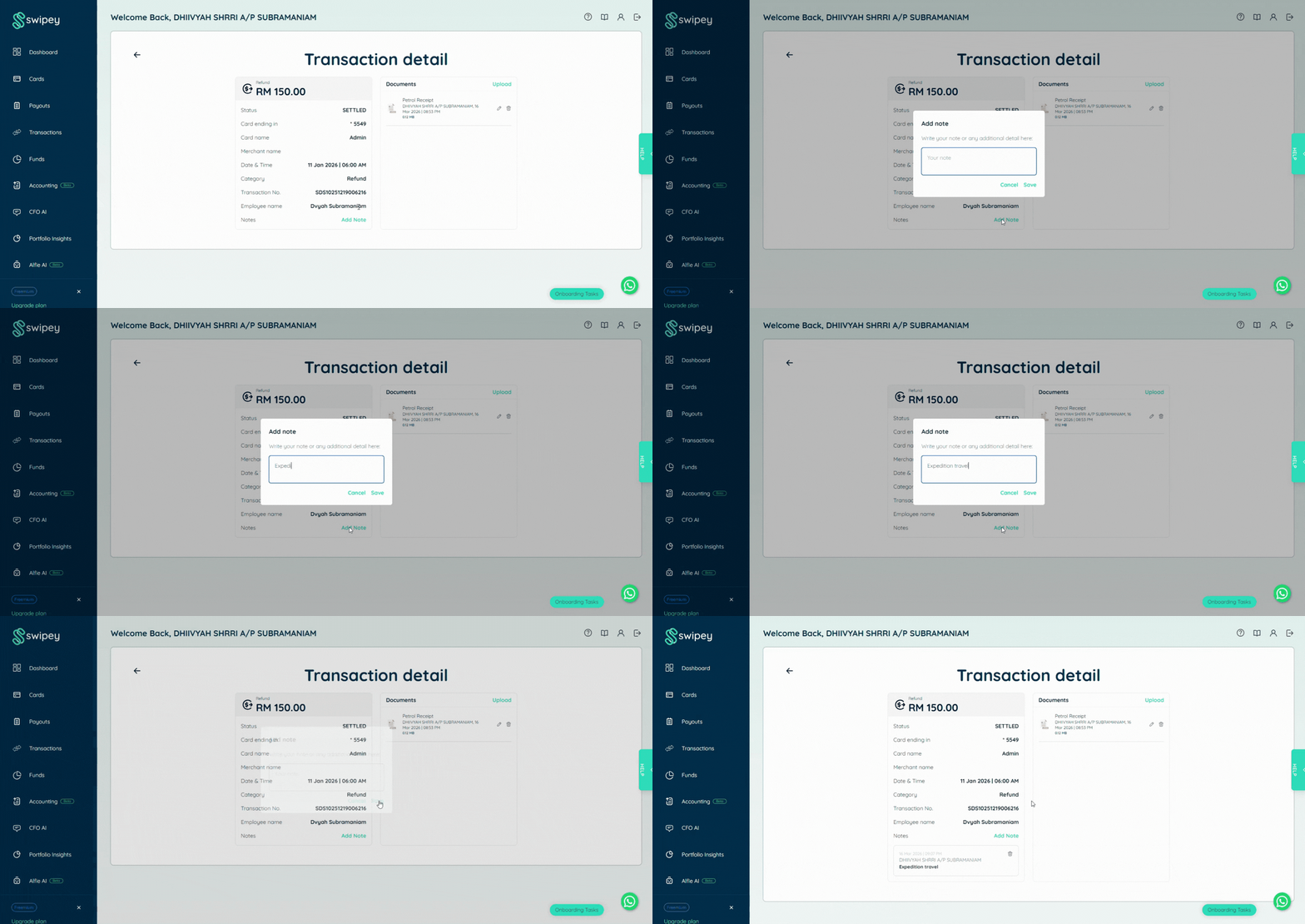
You can upload more than one receipt per transaction. Supported file types: JPG, PNG, PDF
Attach receipts through Swipey Mobile App
Best for employees and admins on-the-go. Attach a receipt right after spending, straight from your phone.
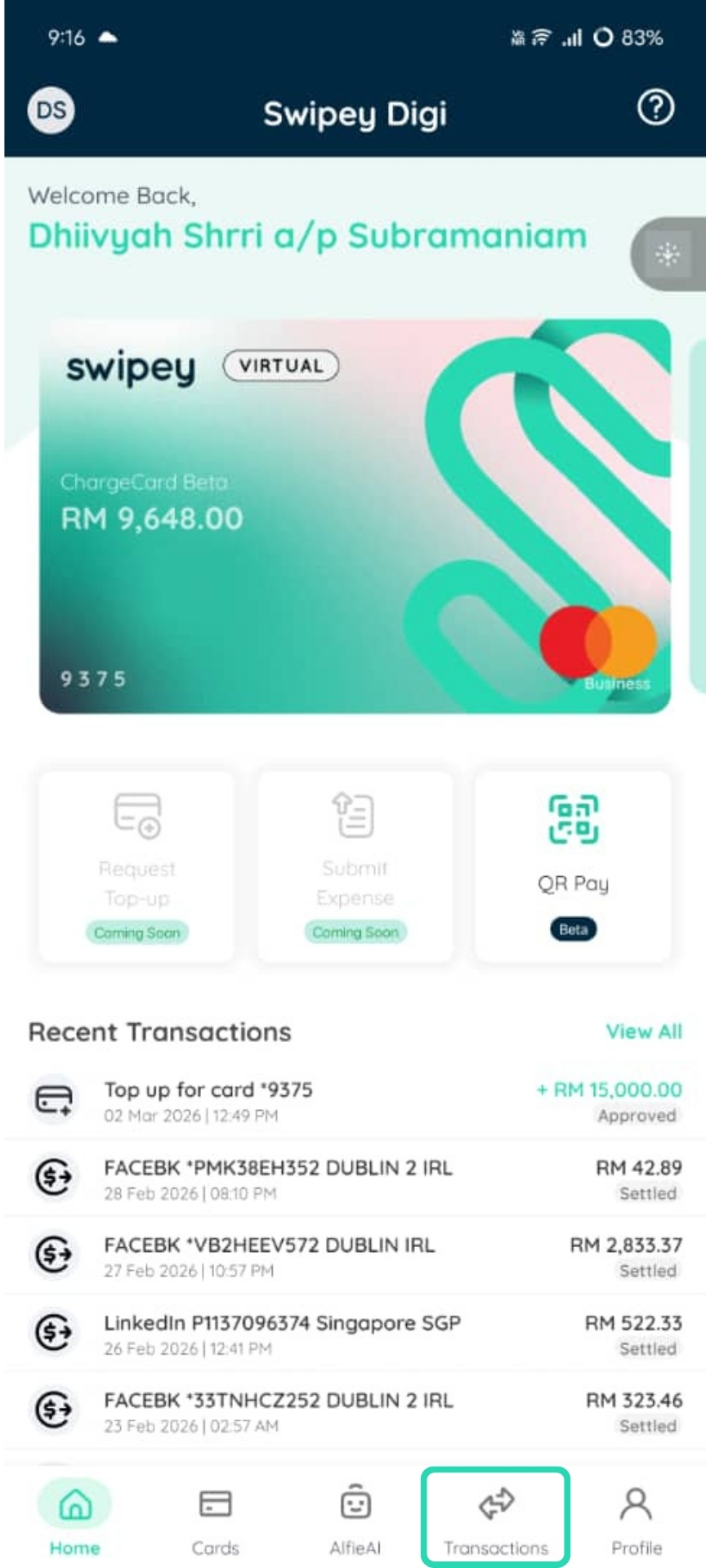
Step 1: Open the Transactions tab
Log in to the Swipey mobile app and tap the Transactions tab at the bottom.
Step 2: Open the transaction
Tap on the transaction you want to attach a receipt to. Tap + Add Receipt and choose a file from your gallery or take a photo, then tap Upload.
Tip: Do this right after you spend — receipts get lost quickly. A clear, flat photo in good lighting works best.
Step 3: Add a note (optional)
From the same screen, tap Add Note beside Additional Notes. Type your note and hit Save. Useful for adding context like a client name, project code, or purpose of the spend.
Attach receipts automatically with Alfie AI
Alfie AI can automatically match receipts to the right transactions for you — no manual uploading needed. This is especially useful for digital receipts from subscriptions, SaaS tools, and online purchases.
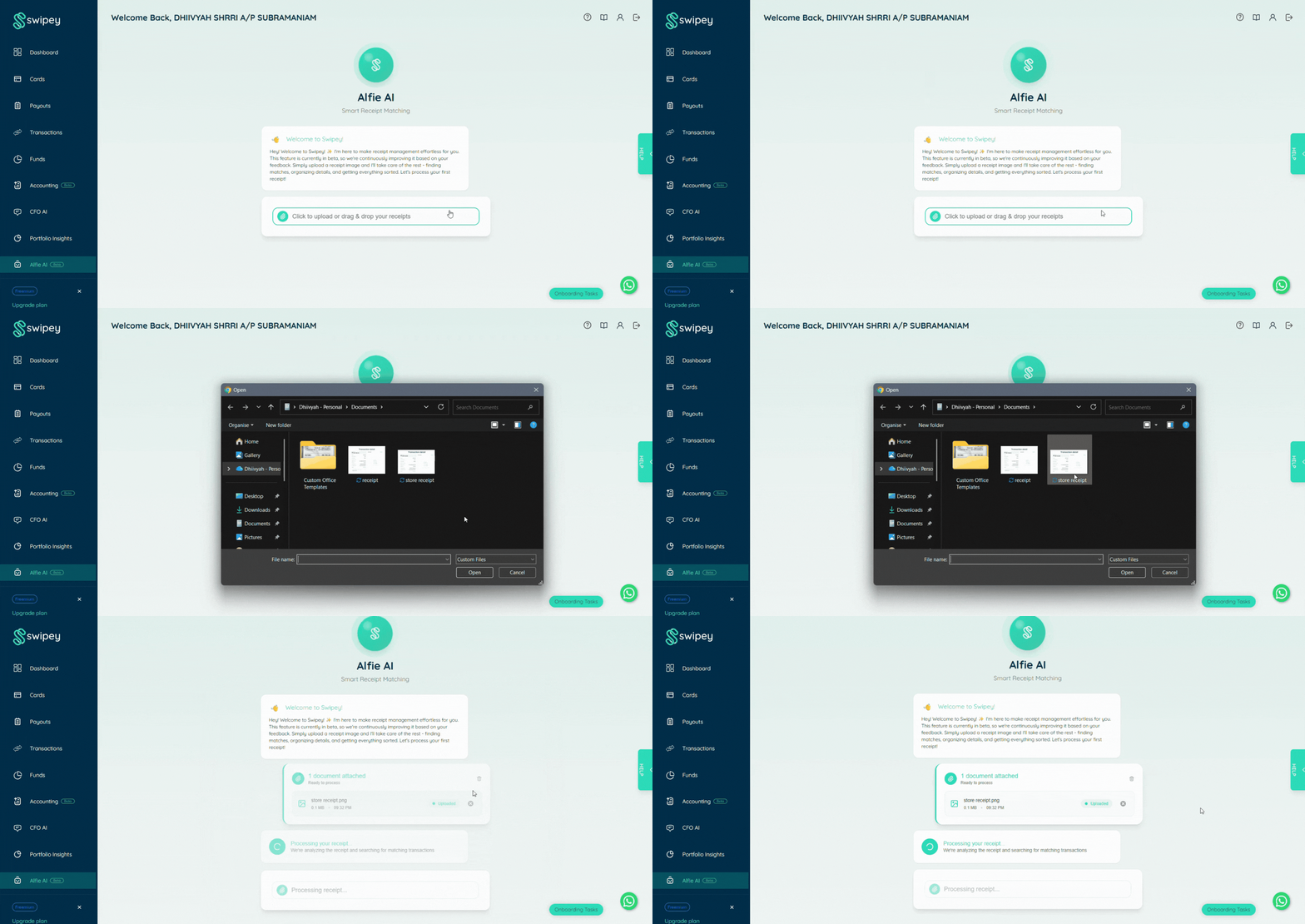
Log in to your Swipey Dashboard or Swipey Mobile app and click Alfie AI, available on both mobile and desktop. Upload your receipts or drag and drop them — you can upload a few at once. Alfie will match and attach them to the right transactions automatically.
Attach multiple receipts at once via email
Got a pile of receipts sitting in your inbox? Instead of uploading them one by one, forward them all in a single email and Swipey will do the matching for you.
Send an email from your registered Swipey email address to receipts@app.swipey.co with your receipts attached. You can attach multiple files in one email and Swipey will automatically match each receipt to the right transaction.
⏱ Heads up: Matching takes a few days to reflect — it's not real time. If you need receipts attached urgently, use the Dashboard or Mobile App methods above.
What's Next?
Now that your receipts are in order, you can continue setting up your account: 👉 Invoice and bill payments
Need Help?
If you're unsure or want someone to guide you through it, we're here.
💬 Chat with us on WhatsApp
📞 Book a 30 min session and we'll guide you through using Swipey
Common Questions
Can I attach more than one receipt to a transaction?
Yes — you can upload multiple receipts to a single transaction from both the dashboard and the mobile app.
What file types are accepted?
JPG, PNG and PDF. Keep files clear and readable — blurry receipts are hard to verify during audits.
Can I delete a receipt and re-upload it?
Yes. Click on the attached receipt in the transaction view, remove it, then upload a new one.
Will receipts sync to QuickBooks or Xero?
Yes — if you have accounting integration set up, receipts attached to transactions will sync over automatically.
What happens to my receipts if I'm on Freemium?
They are stored for 30 days only and cannot be downloaded from the dashboard. If long-term receipt storage matters to your business, consider upgrading to Growth or Plus.